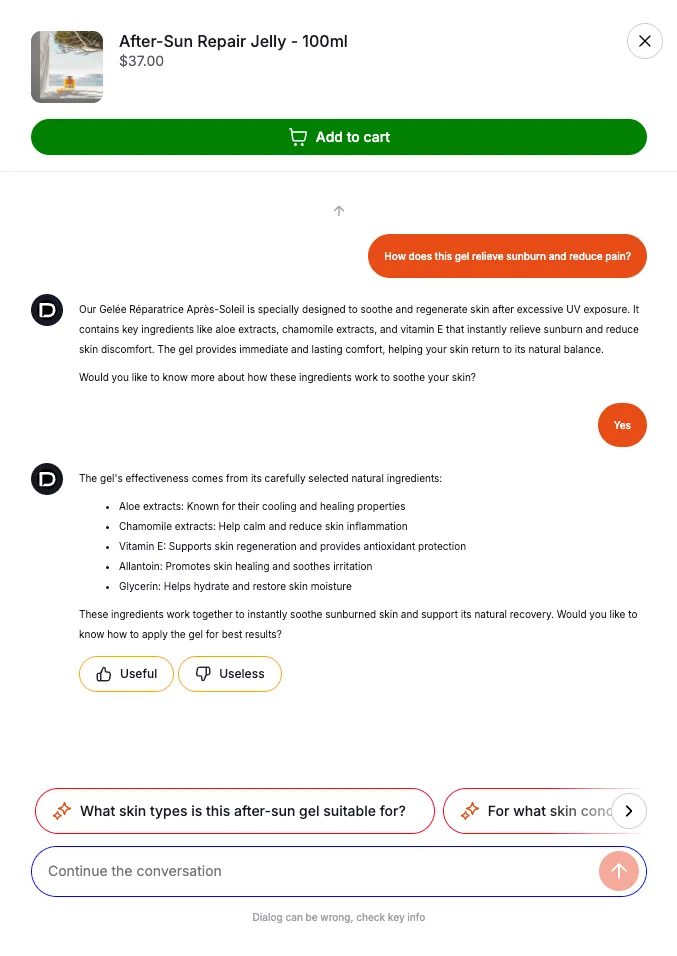
Customize Dialog
Esta página aún no está disponible en tu idioma.
Dialog is set up and trained. Time to make it yours. Personalizing Dialog helps it blend with your store and reflect your brand.
1. Visual customization in Shopify
Section titled “1. Visual customization in Shopify”From your Shopify theme settings, adjust:
- Font and colors to match your brand.
- Custom CSS for full control over the look and feel.
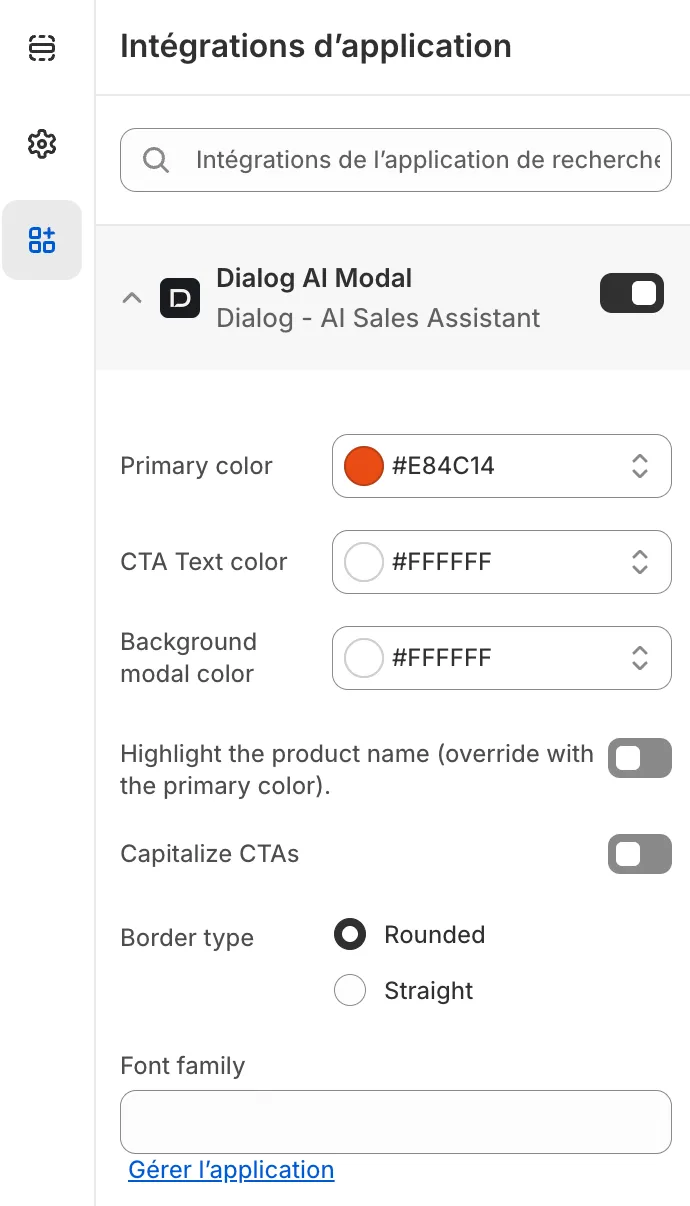
2. Assistant personalization in Dialog
Section titled “2. Assistant personalization in Dialog”In your Dialog dashboard, define the assistant’s identity:

- Name — give your assistant a friendly or brand-aligned name.
- Assistant logo — upload your logo.
- Add-to-cart logo — pick an icon that fits your industry.
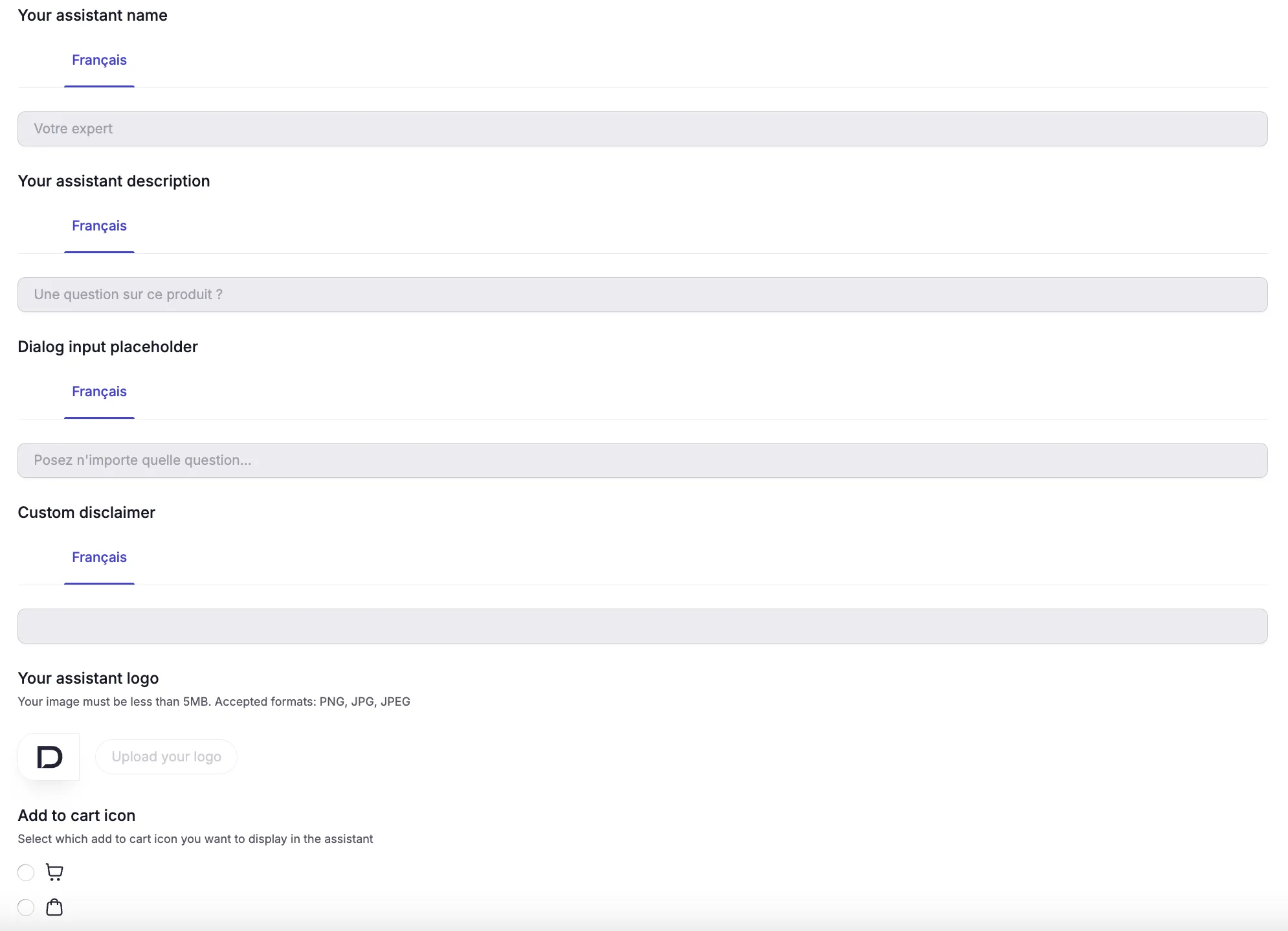
A well-personalized assistant looks better and builds more trust with customers.
3. Customize the assistant with CSS
Section titled “3. Customize the assistant with CSS”The Dialog assistant renders with stable hooks — element IDs and CSS classes that don’t change between releases. They work on any platform (Shopify, PrestaShop, or a custom SDK install): target them with your own CSS to restyle any part of the assistant (fonts, colors, borders, spacing).
Where you add the CSS depends on your install:
- Shopify — the Custom CSS field in your theme settings.
- PrestaShop — your theme’s stylesheet, or a custom CSS module.
- SDK / custom — any stylesheet loaded on the pages where the assistant appears.
Containers (target by ID)
Section titled “Containers (target by ID)”Use these to style whole regions of the assistant. The # selector targets an ID.
| Selector | Target |
|---|---|
#dialog-drawer | The drawer panel — root container for everything inside |
#dialog-ai-container | The assistant conversation area |
#dialog-ai-input | The question input field |
#dialog-bookmark | The bookmark button |
Elements (target by class)
Section titled “Elements (target by class)”Use these for individual elements inside the conversation. The . selector targets a class.
| Selector | Target |
|---|---|
.dialog-human-message | Customer (shopper) messages |
.dialog-message | Assistant (AI) messages |
.dialog-suggestions-item | Suggested questions |
.dialog-feedback-button | Thumbs up / down feedback buttons |
.dialog-diagnostic-choice-with-photo | Visual diagnostic choice card (with photo) |
.dialog-diagnostic-choice-without-photo | Visual diagnostic choice card (no photo) |
.dialog-diagnostic-action-button | Visual diagnostic action button |
CSS variables
Section titled “CSS variables”| Variable | Controls |
|---|---|
--dialog-overlay-bg | Overlay background color (set on #dialog-drawer) |
- Change the font. Dialog applies its font on
#dialog-drawer. Override it there to restyle every message at once, or target a single class like.dialog-human-messagefor finer control. - Use
!importantwhen a rule doesn’t apply. Dialog ships scoped inline styles, so your override may need!importantto win.
Example
Section titled “Example”/* Custom font for shopper messages */.dialog-human-message { font-family: "Georgia", serif !important;}/* Restyle suggested questions */.dialog-suggestions-item { border-color: red;}/* Recolor feedback buttons */.dialog-feedback-button { border-color: orange;}/* Shrink all conversation text */.dialog-human-message,.dialog-message,.dialog-message * { font-size: 10px !important;}Result: