Search tuning
Tuning does the Search settings work for you. Dialog measures your search on a set of test queries, tries other settings on them, and proposes the ones that show shoppers better products. Your live search only changes if you accept the proposal, and you can restore your previous settings at any time.
Open Search in the navigation (under On your storefront), then the Tuning tab:
https://app.askdialog.com/organization/{your-org-slug}/search-settings?tab=tuningIt works in three steps: add test queries, let Dialog test changes in the background, then accept or refuse.
Build your test queries
Section titled “Build your test queries”A test query is a search your shoppers make, such as “carbon saddle” or “waterproof jacket”. The dataset holds up to 40 test queries; 30 are enough for an analysis. They are in your store’s primary language, and are kept from one analysis to the next.
Three ways to add them, shown as each query’s source:
| Source | How |
|---|---|
| Imported | Import a CSV of your shoppers’ searches. See Import your searches. |
| AI-generated | Generate queries: the AI suggests queries your dataset doesn’t cover yet, from your catalog. An optional Direction steers them (“gift ideas”, “technical specifications”). |
| Manual | Type a query in Add a test query and press Add query. |
Start with real searches: they measure what your shoppers actually meet. Generated queries fill the gaps.
Import your searches
Section titled “Import your searches”Import a CSV opens two drop zones:
- Searches: your shoppers’ searches, with their number of searches if you have it.
- Searches with no results: the searches that found nothing. Worth including: they are often the easiest wins.
One search query per line. Exports from Shopify Analytics, Algolia or a spreadsheet work as is: Dialog finds the query column and the count column on its own, whatever the separator.
Continue shows a preview: the new queries, and those already in your dataset. Dialog checks the queries in advance (the ones already there, the most searched no-results queries, then the most searched ones) up to 30, never above 40. Adjust the selection, then Save dataset. New queries are evaluated in the background.
Read the evaluation
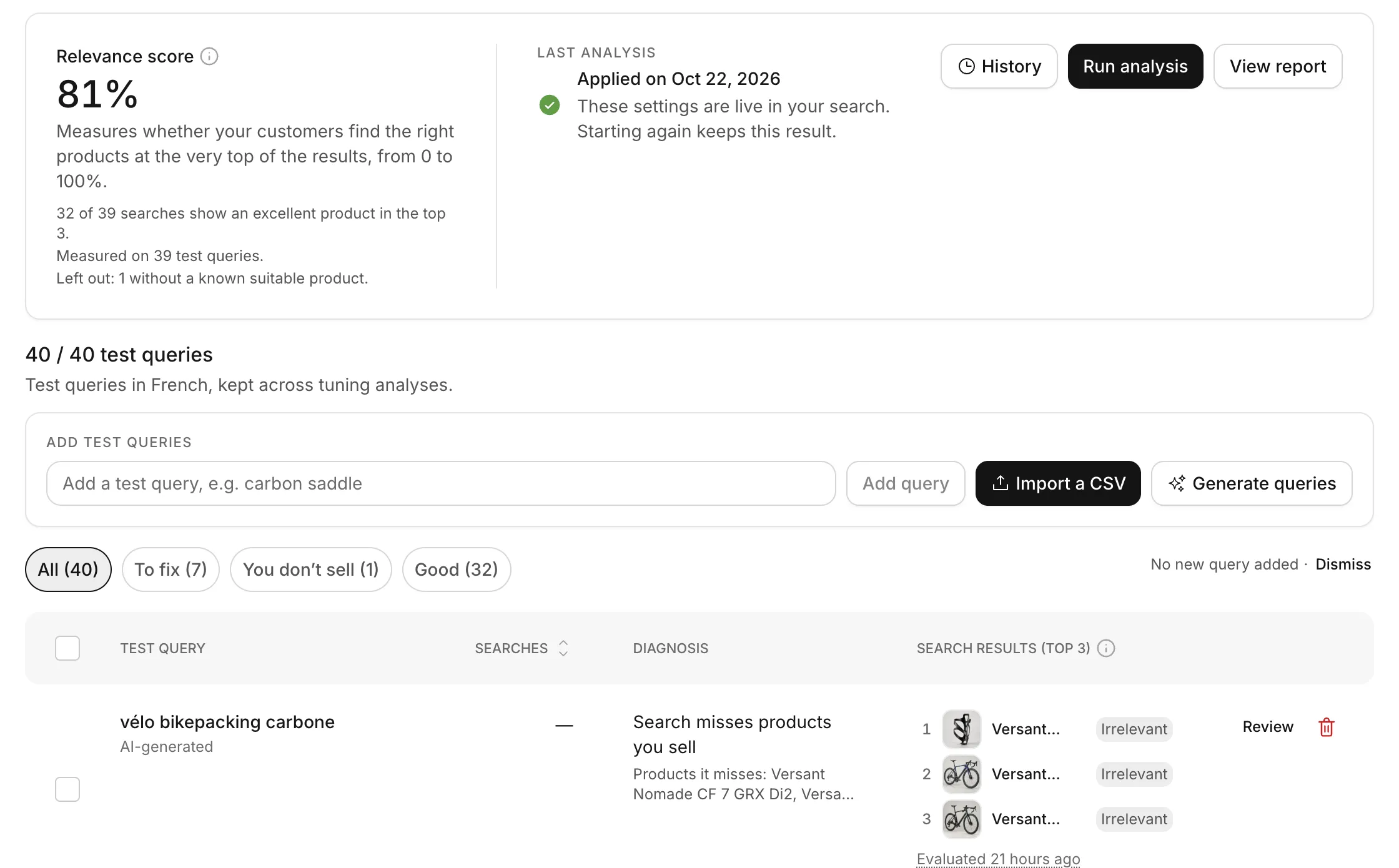
Section titled “Read the evaluation”Each test query is searched like a shopper would, and the AI grades the products that come back: Excellent, Acceptable or Irrelevant. The dataset table shows, for each query, its number of searches (with a No results badge when it came from that file), the first three products of your search and its diagnosis:
| Diagnosis | What it means |
|---|---|
| Good results | An excellent product is in the top 3. |
| Average results: no ideal product at the top | No excellent product is known, but an acceptable one is in the top 3. |
| Search misses products you sell | A suitable product exists in your catalog, but not in the top 3: the settings can fix it. The row lists the products it misses. |
| You don’t seem to sell this | No product of your catalog fits the query: tuning leaves it aside. |
| To check | Dialog could not tell whether you sell this. |
Filter the table to work on what matters first: To fix, To check, You don’t sell, Outdated, Good.
Correct the AI
Section titled “Correct the AI”You know your catalog better than the AI. Click Review on a query to:
- change the grade of a product (your grade takes precedence and is kept across evaluations),
- Add an expected product the search should find,
- mark the query I do sell this or I don’t sell this.
Each change evaluates the query again. It never changes your live search settings.
Outdated results
Section titled “Outdated results”When you save new settings, earlier evaluations no longer reflect your live search: their rows show Outdated. Re-evaluate a query, or Re-evaluate all, to refresh them. Accepting or restoring a proposal re-evaluates every query on its own.
The relevance score
Section titled “The relevance score”The Relevance score, from 0 to 100%, measures whether your shoppers find the right products at the very top of the results. For each test query, Dialog grades the first 10 products: a relevant product counts more the higher it ranks, and 100% means the best known products are at the very top, in the right order. The score is the average over your evaluated test queries.
Next to it, a line counts the searches that show an excellent product in the top 3. Queries not evaluated yet, or without any known suitable product, are left out of the score, and the score says how many.
Run an analysis
Section titled “Run an analysis”Click Run analysis. It runs in the background for a few minutes: you can leave the page. Dialog measures your current settings, then tests combinations of settings on your test queries and keeps the one that measures best.
An analysis can change your searchable fields and their order, your synonyms, your pinned products and your typo settings. It never changes your displayed results (out-of-stock products, order of equally relevant products, collections, articles and pages).
It ends on one of these:
| Result | What to do |
|---|---|
| Proposal ready | Review it: see below. |
| Your search already works well | Dialog found no change that does better: nothing to do. |
| Limit reached | The analysis ran out of steps or time before choosing. Your settings are unchanged: run it again. |
| Tuning failed | Run it again. |
Before the first analysis, at least one test query must be evaluated. If the Tuning tab says your catalog is not ready for the search engine, contact the Dialog team.
Accept or refuse the proposal
Section titled “Accept or refuse the proposal”Review proposal opens the Tuning proposal:
- the score change, in points, and how many of your searches would show better products (and worse ones, if any),
- Why Dialog proposes this, in plain words,
- the proposed configuration, change by change,
- for each improved or degraded query, its top three before and after.
The proposal is measured on products, in your primary language. Its settings also apply to your other languages and to collections, articles and pages, which tuning does not check.
Accept and apply saves the proposal as your live settings, as tested: shoppers see the new results right away. Refuse keeps your live settings. Either way, the decision stays in the analysis, and the next analysis starts from your live settings.
Save or discard any unsaved change of the Configuration tab first: the Tuning tab waits for it, so that a draft never undoes a proposal.
Restore previous settings
Section titled “Restore previous settings”History lists the proposals you applied, with their score change. Restore on one of them shows what would change in your live search, then puts back the searchable fields, synonyms, pinned products and typo settings from before that proposal. If you edited your settings after applying it, restoring also undoes those edits: the comparison shows them before you confirm.
Related
Section titled “Related”- Search settings: every setting tuning can change, to set by hand.
- How Search ranks results: what the settings do to the order of the results.
- Search analytics: the no-result queries and the queries without a click, good test queries.