Install Search on Shopify
This page installs Search on a Shopify store. It follows the Setup tab of the Search page in the Dialog app: a checklist of three steps, each done in the Shopify theme editor.
- Enable search autocomplete: Dialog product suggestions on the search field your theme already has.
- Add the search results page: Dialog’s results on your
/searchpage. - Add a search bar (optional): only if your theme has no search field.
Before you start
Section titled “Before you start”- Install the Dialog Shopify app first: Search ships with it.
- The search results page and the search bar are app blocks: they need an Online Store 2.0 theme.
- Work on your published theme. The checklist opens the theme editor on it, and only checks that theme.
Open the Setup checklist
Section titled “Open the Setup checklist”In the Dialog app, open Search in the navigation (under On your storefront), then the Setup tab. The Search page opens on this tab as long as a step is left to do.
https://app.askdialog.com/organization/{your-org-slug}/search-settings?tab=setupThe Install Search on your theme checklist lists the steps in order. Each row shows where it stands:
- Open theme editor: the step is still to do. The button opens the theme editor in a new tab, at the right place.
- A waiting message: you opened the editor and Dialog waits for your theme. Save in Shopify, then come back: Dialog checks your theme on its own.
- Detected on your published theme: the step is done.
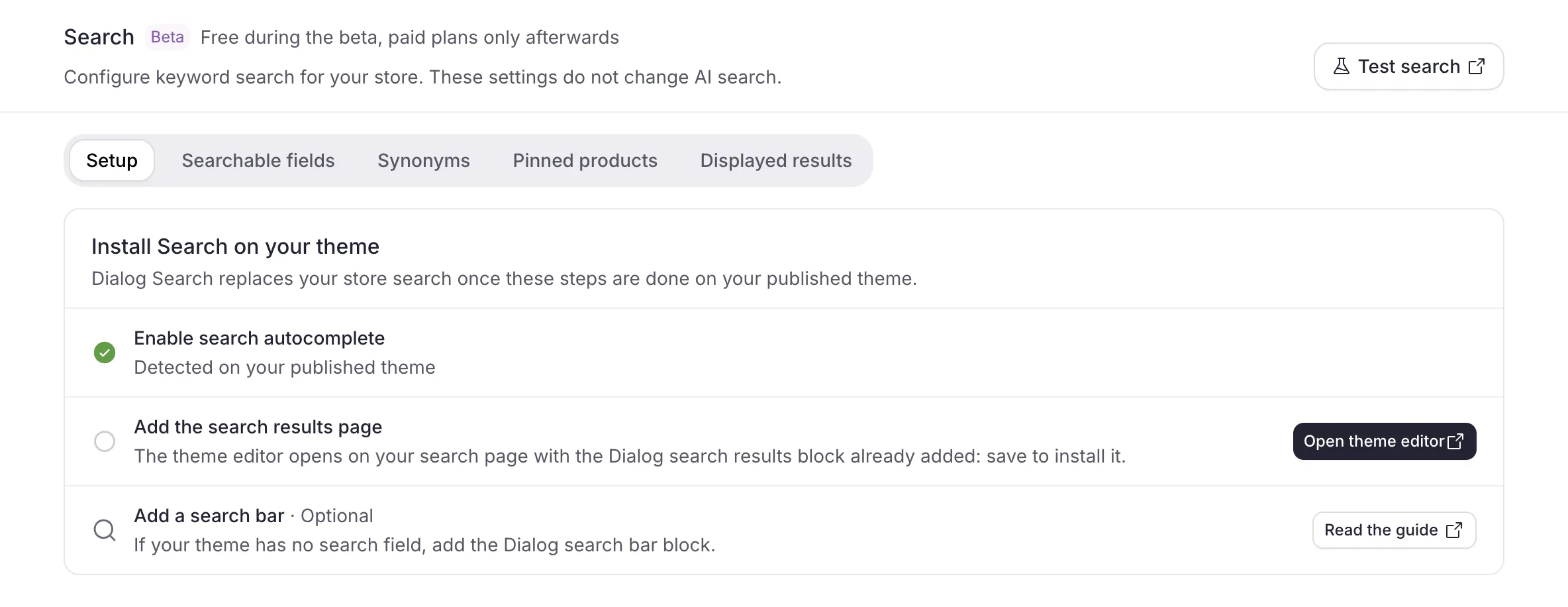
Enable search autocomplete
Section titled “Enable search autocomplete”This step adds Dialog product suggestions to the search field your theme already shows, with no layout change.
- On the Setup tab, on the Enable search autocomplete row, click Open theme editor. The theme editor of your published theme opens on App embeds, with the Dialog AI Modal embed turned on.
- In the Dialog AI Modal embed, tick Enable Dialog search autocomplete. It is off by default on every theme: turning the embed on is not enough.
- Save, then go back to the Dialog app: the row shows Detected on your published theme.
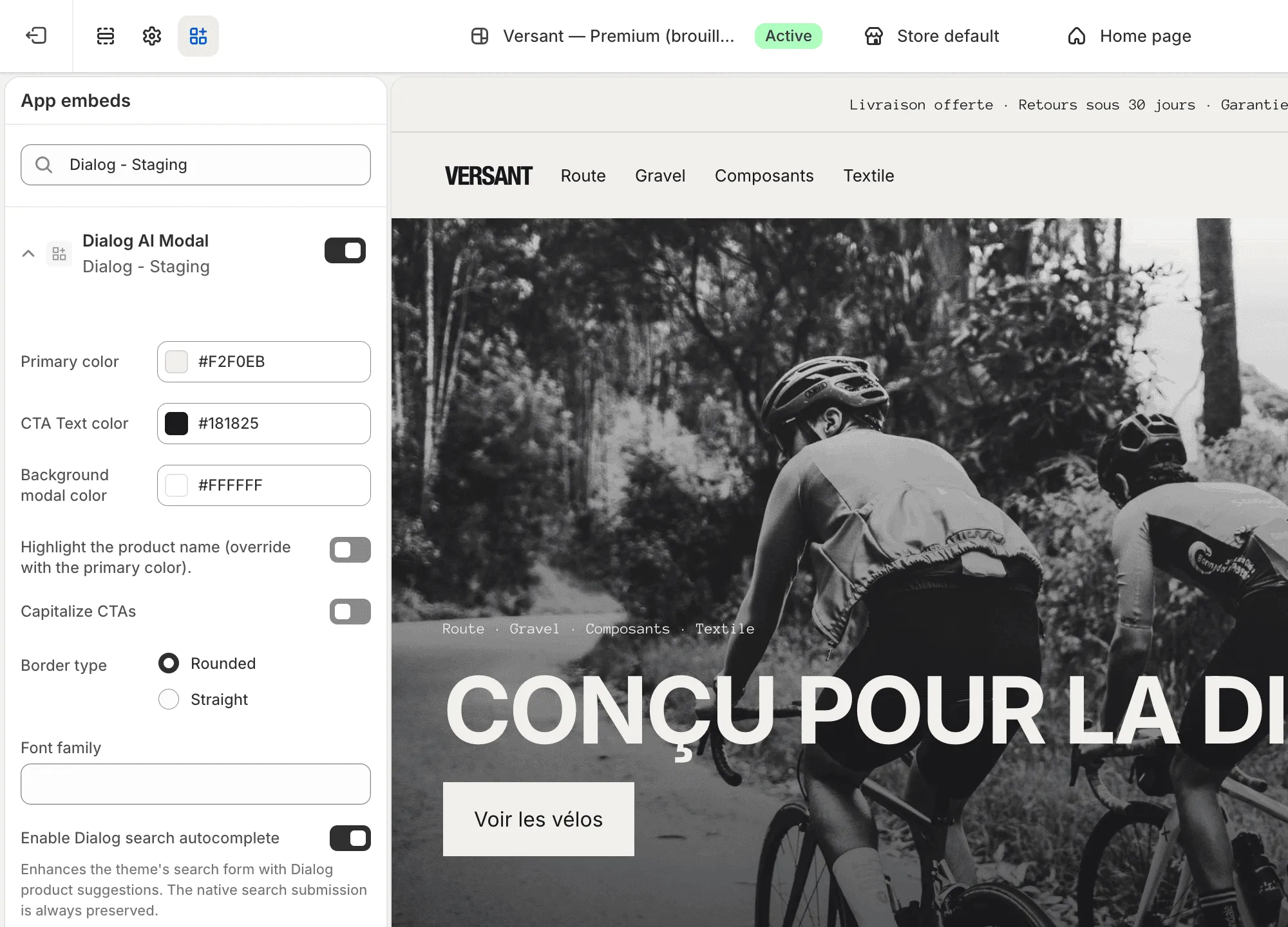
The same embed holds the other autocomplete settings:
| Setting | What it does |
|---|---|
| Search suggestions style | Dialog search overlay (default): a search layer opens over the page as soon as the field gets focus, styled with the embed’s colors. Panel under the theme’s input: suggestions open under your field as the visitor types, matching its look. |
| Overlay products layout | List (default) or Grid: how products are laid out in the overlay. No effect on the panel. |
| Search form CSS selector (optional) | Leave blank: Dialog finds your theme’s search form on its own. Set it only if the suggestions never appear on a heavily customized theme: see Suggestions don’t show under the search field. |
Submitting the form still runs your store’s normal search: Dialog only adds the suggestions. To serve Dialog’s results on the results page itself, add the search results page.
Add the search results page
Section titled “Add the search results page”This step turns your /search page into a Dialog results page, with the Dialog search results block. The block is only available on the Search template.
- On the Setup tab, on the Add the search results page row, click Open theme editor. The theme editor opens on your Search template, with the Dialog search results block already added.
- Adjust Products per page if you like, then Save.
- Go back to the Dialog app: the row shows Detected on your published theme.
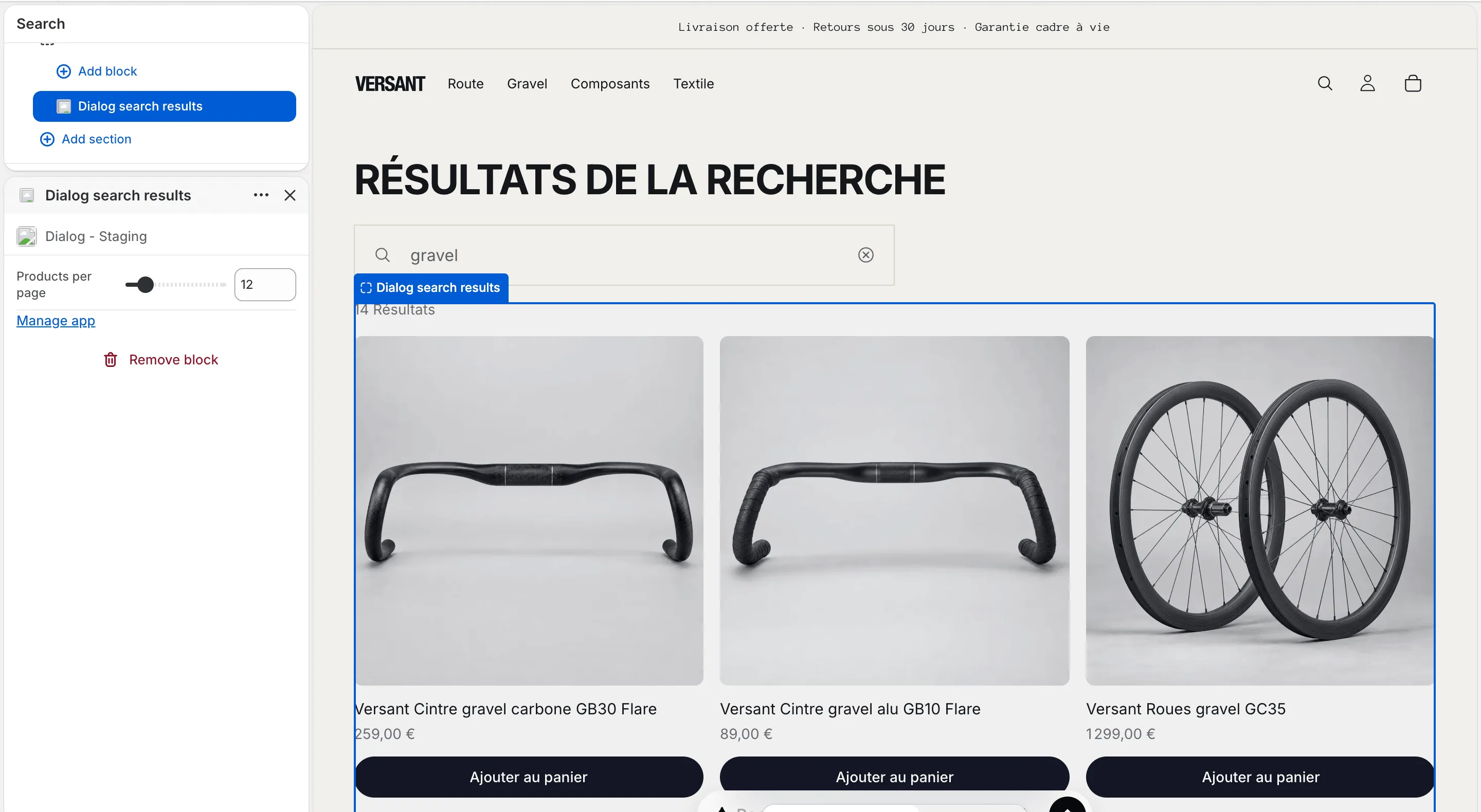
| Setting | What it does |
|---|---|
| Products per page | Grid size per page: 6 to 48 products, default 12. |
What visitors get:
- a product grid of Dialog’s results, with add-to-cart on each card,
- live search: typing in your theme’s search form on the results page updates the grid, and the
?q=parameter stays in sync so the URL is shareable, - numbered pagination,
- loading, empty, and error states.
To avoid showing results twice, the block hides your theme’s native results grid and predictive search panel on that page. If the Dialog runtime cannot load, your theme’s native results remain visible, so visitors always get results.
Add a search bar
Section titled “Add a search bar”On the Setup tab, the Add a search bar row is marked Optional: add the Dialog search bar block only if your theme has no search field. The row has no theme editor button and is never ticked: you add the block yourself, wherever you want it.
- In your Shopify admin, go to Online Store → Themes → Customize, then select the section where you want the bar (your header, an announcement row, or any section).
- Click Add block and pick Dialog search bar.
- Choose the Display setting and Save.
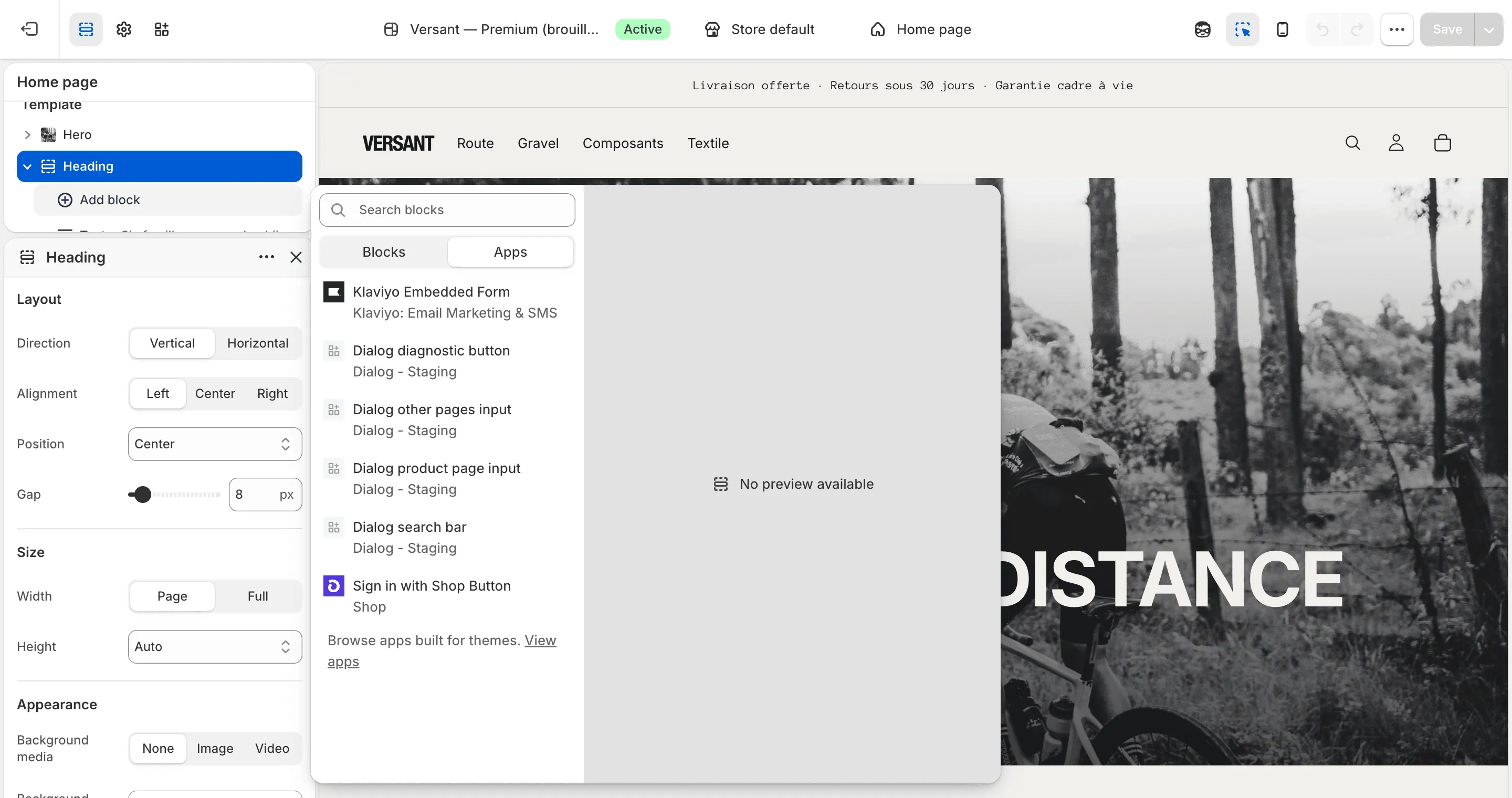
| Setting | What it does |
|---|---|
| Display | Full search bar: the input is always visible. Search icon: a compact icon; clicking it expands a full-width search band over the row it sits in (like Shopify’s native header search), with a close button. Escape closes it. |
| Placeholder | Optional input placeholder. Leave blank to use Dialog’s built-in translation for the storefront language (English, French, Spanish, German, Italian). |
The bar has autocomplete built in: it doesn’t need Enable Dialog search autocomplete, but it follows the Search suggestions style of the Dialog AI Modal embed. Submitting the bar navigates to your /search page with the query. If JavaScript is unavailable, the icon variant simply links to /search, so search never breaks.
Verify your install
Section titled “Verify your install”On the Setup tab, the first two rows show Detected on your published theme. Then, on your storefront:
- Click or type in the search field → Dialog product suggestions appear.
- Submit a query →
/searchshows the Dialog product grid (and only one grid). - Add a product to the cart from a result card → your cart updates.
- Change page with the pagination → the grid and URL update.
If something doesn’t work, see Troubleshoot Search.
Related
Section titled “Related”- Search overview: what Search does and the beta terms.
- Search settings: the other tabs of the Search page, to tune searchable fields, synonyms, pinned products and collections.
- Troubleshoot Search: suggestions, results page, header search bar, missing products.
- Install Dialog on Shopify: the app install this feature builds on.
- Smart Discovery: proactive assistant surfaces (modal and AI Bar).
- Verify your install: end-to-end install checks.
- Install Search on a headless storefront: the same search as React and Vue components, an SDK search controller and a REST endpoint.