Knowledge
Knowledge is where you manage what the assistant knows about your store: your catalogue, the documents you hand it, and the pages it crawled. Everything is self-serve from the Dialog dashboard, under Knowledge in the navigation, and available on every plan, Free included.
https://app.askdialog.com/organization/{your-org-slug}/knowledgeThe four tabs
Section titled “The four tabs”| Tab | Holds |
|---|---|
| Products | Every product the assistant answers from, and what it reads about each one. This is where you correct a product or attach a file to it. |
| Added content | The documents you upload for the assistant (policies, FAQs, guides). They used to live in Assistant settings. Every upload and removal is saved immediately; the Free plan holds two documents. |
| Website content | The pages of your site the assistant crawled, with their status. |
| Metafields & collections | The structured data of your catalogue the assistant reads, and what you exclude or describe. |
The pre-generated questions and the look of the assistant on your product pages are not here: they live under Product page in the navigation, in its Questions and Appearance tabs.
Products: what the assistant answers from
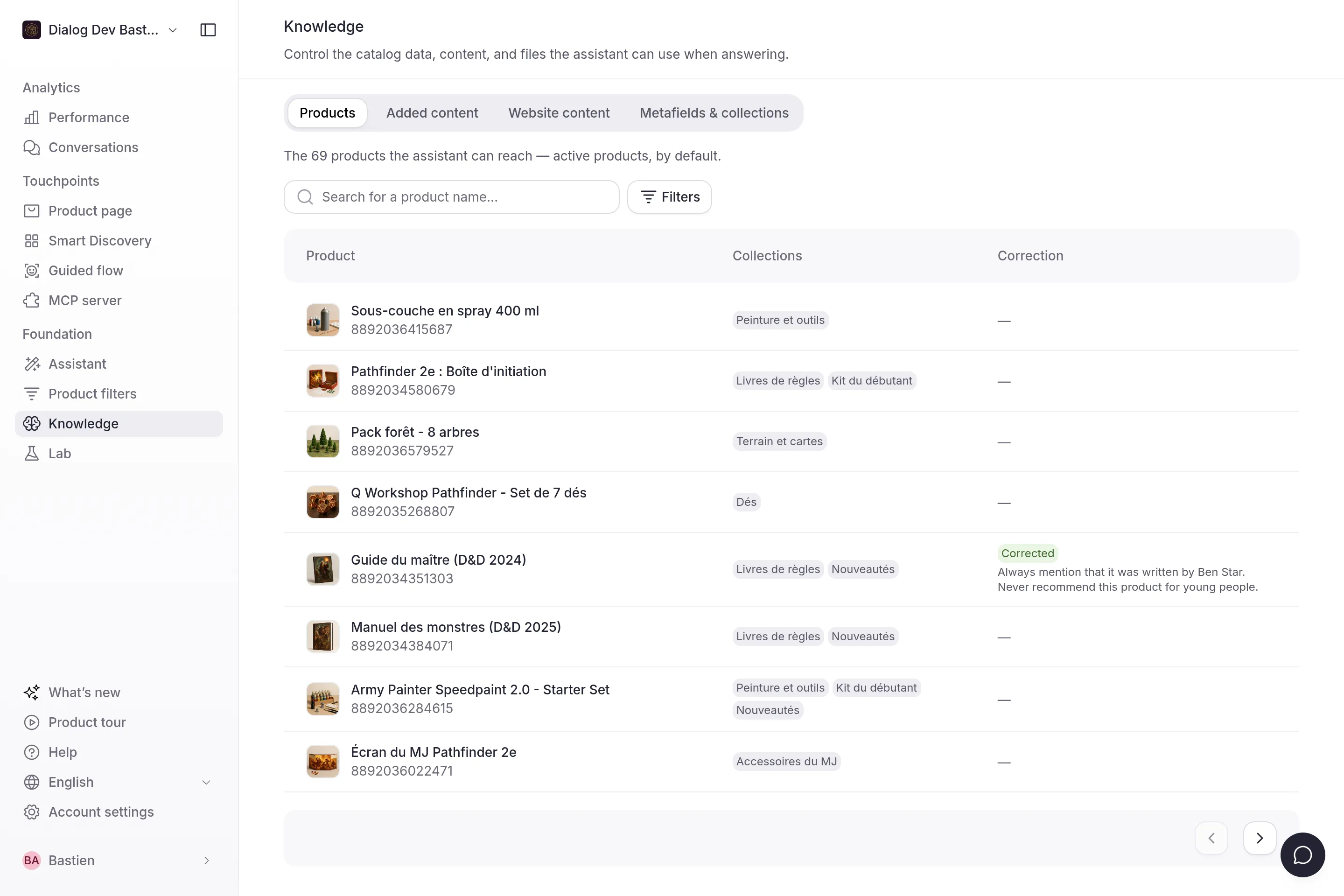
Section titled “Products: what the assistant answers from”The table lists the products the assistant can reach: your active products, by default. Each row shows the product name with its id underneath, its collections, and its correction if you wrote one. Search and the filters (collections, metafields, product type) narrow the list; the sentence above the table always counts the whole scope.
Open a product to see what the assistant reads
Section titled “Open a product to see what the assistant reads”Click a row. The drawer opens on a summary, “The assistant reads 12 fields, 3 variants and 1 instruction”, then on exactly what it reads:
- Product attributes: the metafields, collections and tags the assistant filters on when it narrows a recommendation.
- Other fields: the free content it quotes when it answers, such as the title, the description and the product type.
- Instructions for the assistant: your corrections for this product (below).
- Variants: the variants and their prices per market. The assistant gets the prices of the shopper’s market when it answers; they are not part of the ingested text shown here.
- Files: the documents attached to this product (below).
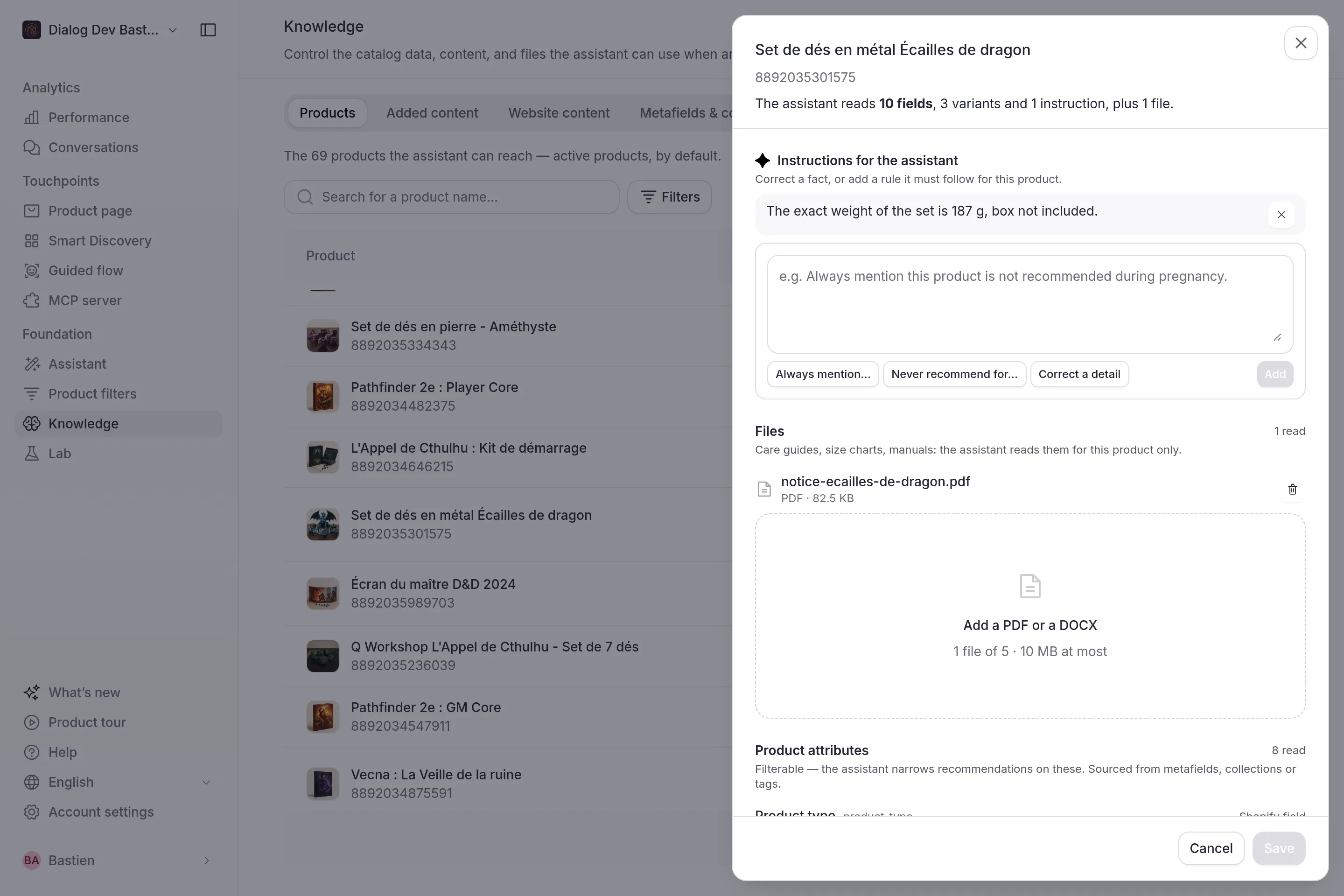
When an answer about a product is wrong, this drawer tells you why: the fact is missing, or another field contradicts it.
Correct a product with an instruction
Section titled “Correct a product with an instruction”In Instructions for the assistant, correct a fact or add a rule the assistant must follow for this product, in plain sentences:
- “Always mention that this product is not recommended during pregnancy.”
- “Never recommend this product for children under 3.”
- “The correct weight is 187 g, not 200 g.”
Three templates start these sentences for you. You can add several instructions to one product. Save the drawer and the assistant reads them from then on, whenever it talks about that product. The Correction column of the table shows a Corrected badge on the product.
Instructions fix one product. For a rule that applies to your whole store, write a guideline instead.
Attach files to a product
Section titled “Attach files to a product”In Files, drop a care guide, a size chart, a manual: the assistant reads it for this product only, on that product’s page, to answer factual questions about it.
- Formats: PDF and DOCX.
- Limits: 5 files per product, 10 MB each.
- Indexing: the file shows “Indexing…” for about a minute, then its type and size once the assistant can read it.
- Removal: deleting a file removes it from the assistant immediately.
- Catalogue syncs never remove your files: they are re-indexed with every full import.
If a file cannot be read, the drawer says why:
| Message | Meaning |
|---|---|
| Only PDF and DOCX files are accepted. | The extension is something else. |
| This file is over 10 MB. | Compress it or split it. |
| This file is not what its extension says. | The content does not match the extension (a renamed image, for instance). |
| No text found: a scanned document cannot be read. | The PDF is made of images. Export it from the source document, or run OCR on it first. |
| This file could not be read. | The file is damaged or protected. Re-export it. |
A file is read for the product it is attached to and for no other. To document something that applies to several products, upload it once under Added content instead.
Metafields & collections: what the assistant reads from your catalogue data
Section titled “Metafields & collections: what the assistant reads from your catalogue data”The table lists the metafields and collections carried by your active products, with their type, their name (the Shopify definition name when there is one), their description, their product coverage (the share of products carrying the metafield) and whether they are read by the assistant. The sentence above the table sums it up: “37 of 52 metafields read by the assistant · 3 excluded”. Search, the type filter and Only excluded narrow the list; the items you excluded sit at the bottom.
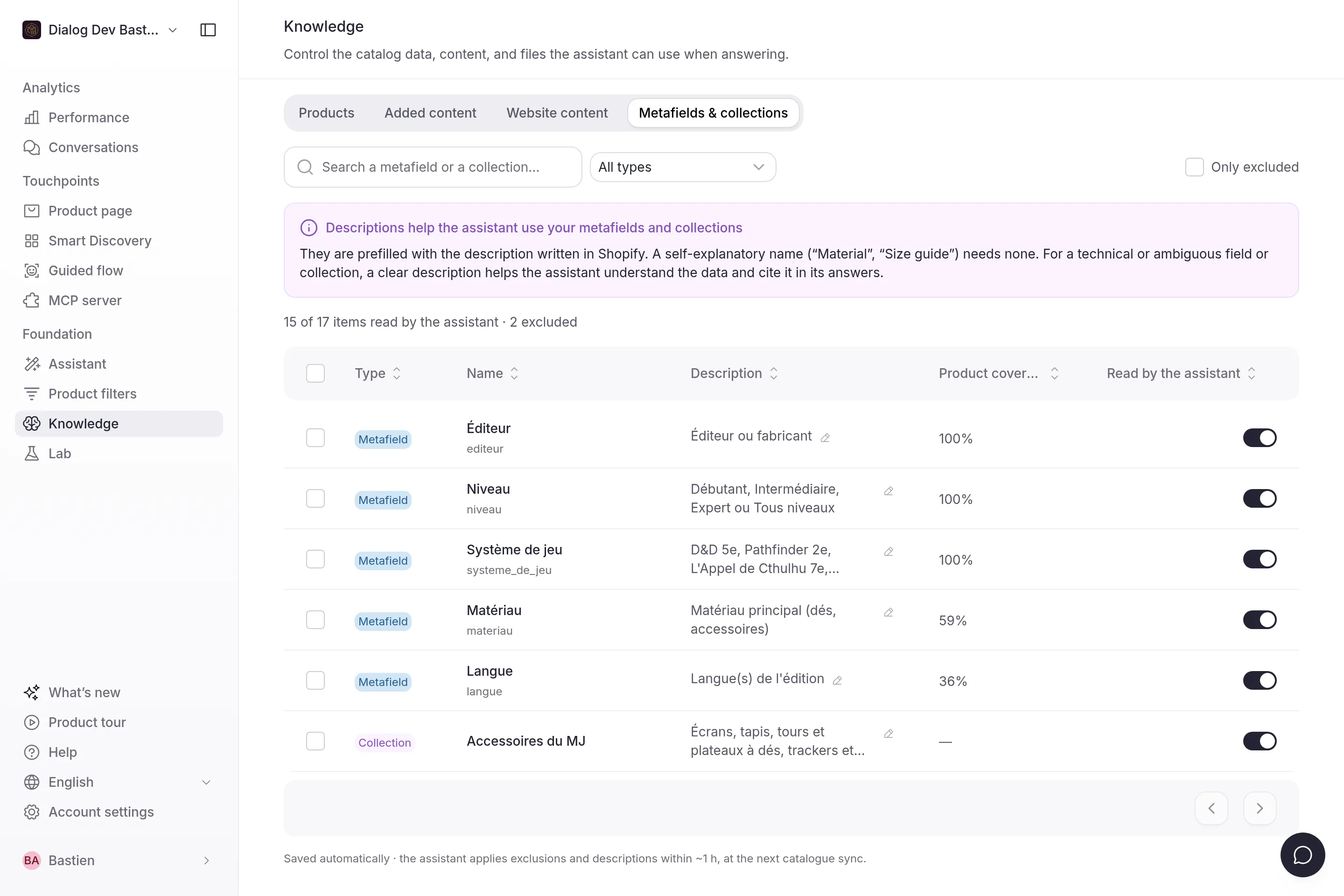
Tags are not listed here: the assistant still reads them as product attributes, but they cannot be excluded or described in this version.
Exclude what the assistant should not read
Section titled “Exclude what the assistant should not read”Turn off Read by the assistant on a row, or select several rows and click Exclude from reading. Use it for internal data (ERP codes, supplier references, back-office flags) and for anything that should not influence an answer. Re-include brings an item back; its description is kept.
Exclusions are saved automatically and applied at the next catalogue sync, within about an hour.
Describe a metafield or a collection
Section titled “Describe a metafield or a collection”A self-explanatory name (“Material”, “Size guide”) needs no description. For a technical or ambiguous key, write what the field contains and how to use it: custom.mat → “Fabric composition, as a percentage per fibre”. The assistant reads this description alongside the values.
Descriptions are prefilled with the definition written in Shopify; edit them inline in the Description column, 500 characters at most. Collection descriptions come from Shopify too and are editable the same way. They are saved automatically and applied at the next catalogue sync, like exclusions.
Fix a wrong answer: where to act
Section titled “Fix a wrong answer: where to act”| The problem | Where to act |
|---|---|
| A fact about one product is wrong or missing | The product’s Instructions for the assistant |
| The answer needs a manual, a size chart, a care guide of one product | The product’s Files |
| An internal code or field shows up in answers | Metafields & collections, exclude it |
| The assistant misuses a metafield with a cryptic name | Metafields & collections, describe it |
| General information is missing (policies, delivery, brand) | Added content, upload a document |
| The tone or a store-wide rule is off | Guidelines |