Search settings
The Search page of the Dialog app is where you tune Search: what it looks at, the words your shoppers use, and what comes first. Open Search in the navigation (under On your storefront):
https://app.askdialog.com/organization/{your-org-slug}/search-settingsThe tabs
Section titled “The tabs”| Tab | What you set |
|---|---|
| Setup | The install steps for your theme. See Install Search on Shopify. |
| Searchable fields | The product fields a query is matched against. |
| Synonyms | Words that find the same products, per language. |
| Pinned products | Up to 3 products placed first for a given query, per language. |
| Displayed results | Whether matching collections show next to the products. |
Every change is saved and applied to your store’s search right away (“Settings saved and applied.”). To try your settings, click Test search at the top right of the page: it opens a search test page in a new tab.
Searchable fields
Section titled “Searchable fields”A product shows up when the query matches one of the fields listed in this tab. Each field you add brings up more products. When two products match equally well, the one matching in its Title comes first.
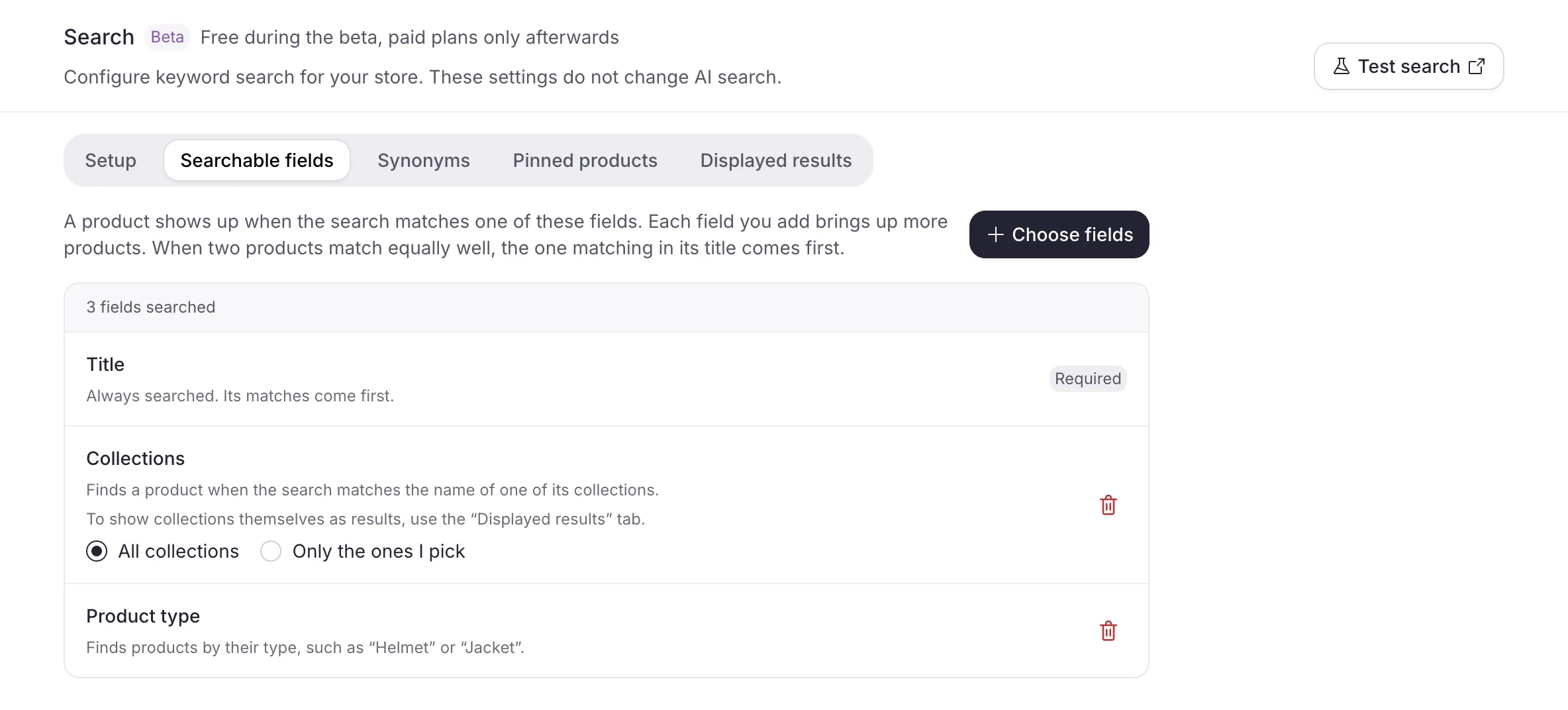
Title is always searched (it is marked Required and cannot be removed). Click Choose fields to add others:
| Field | Finds a product by |
|---|---|
| Description | Any word in its description. The broadest field: it can bring up loosely related products. |
| Product type | Its type, such as “Helmet” or “Jacket”. |
| SKU | Its reference. Useful when shoppers search by part number. |
| Collections | The name of one of its collections. |
| Tags | Its tags. Internal tags can bring up unexpected products. |
| Options | Its variant names, such as a colour or a size. |
| A metafield | Its value for that metafield. The list shows how many of your products have it filled in (“Metafield, filled in on 40% of products.”). |
To stop searching a field, click the trash icon on its row.
With Collections in the list, choose which collection names count: All collections, or Only the ones I pick and then Choose collections. This field finds products through their collections; to show the collections themselves as results, use the Displayed results tab.
Synonyms
Section titled “Synonyms”A synonym group makes different words find the same products: with “bike · bicycle”, a shopper typing either word sees the same results.
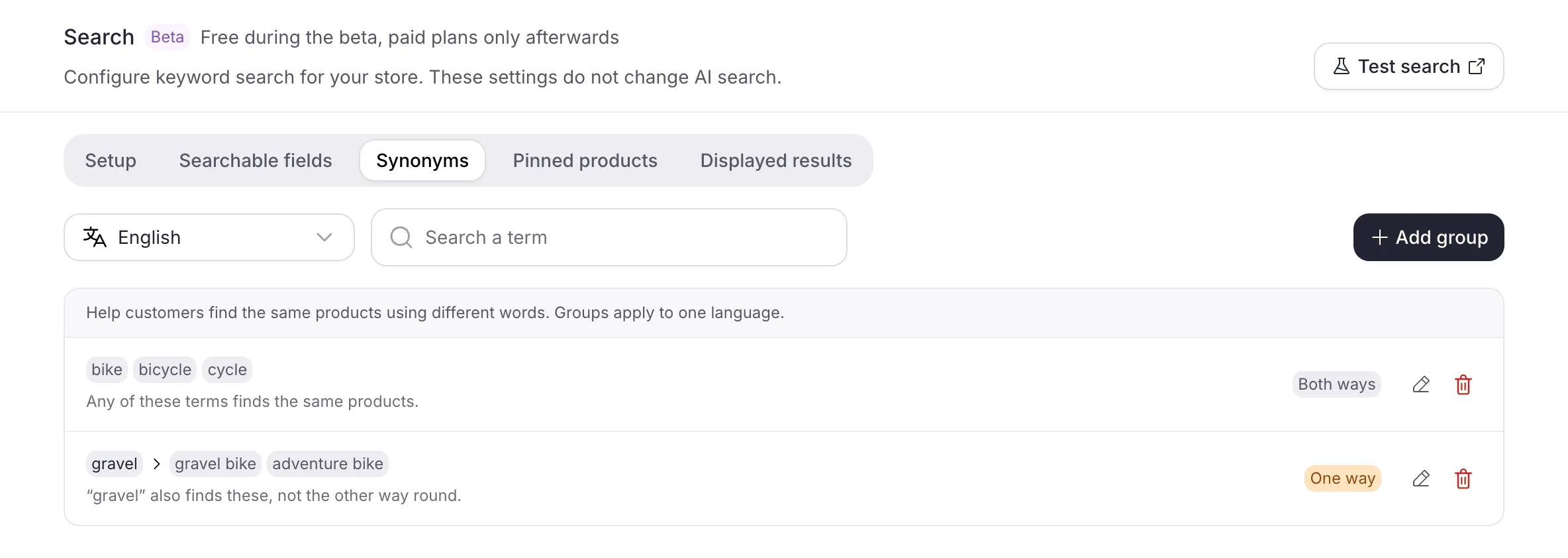
Groups apply to one language. The language selector at the top of the tab lists your store’s languages and opens on its primary language. A group added under English only works for searches made in English; add the groups again under each language your store sells in.
To add a group:
- Pick the language, then click Add group.
- In Term or phrase, type a term and press Enter. Repeat for each term: 2 to 20 distinct terms per group.
- Choose the direction with Works both ways, then Save.
| Direction | What it does | Terms |
|---|---|---|
| Works both ways (on) | Any of the terms finds the same products. | Single words only. |
| One way (off) | The Main term also finds the other terms, not the other way round. | The main term is one word; the others can be phrases. |
For example, a one-way group with the main term “mtb” and the phrase “mountain bike” makes “mtb” find mountain bikes, while “mountain bike” keeps its own results.
Matching ignores case and accents: a group written “vélo” also applies to the query “VELO”. A store holds up to 100 groups, all languages together. Use Search a term to find a group, then edit or delete it from its row.
Pinned products
Section titled “Pinned products”A pin rule places up to 3 products first, in the order you set, when a shopper searches an exact query. The rest of the results follows as usual.
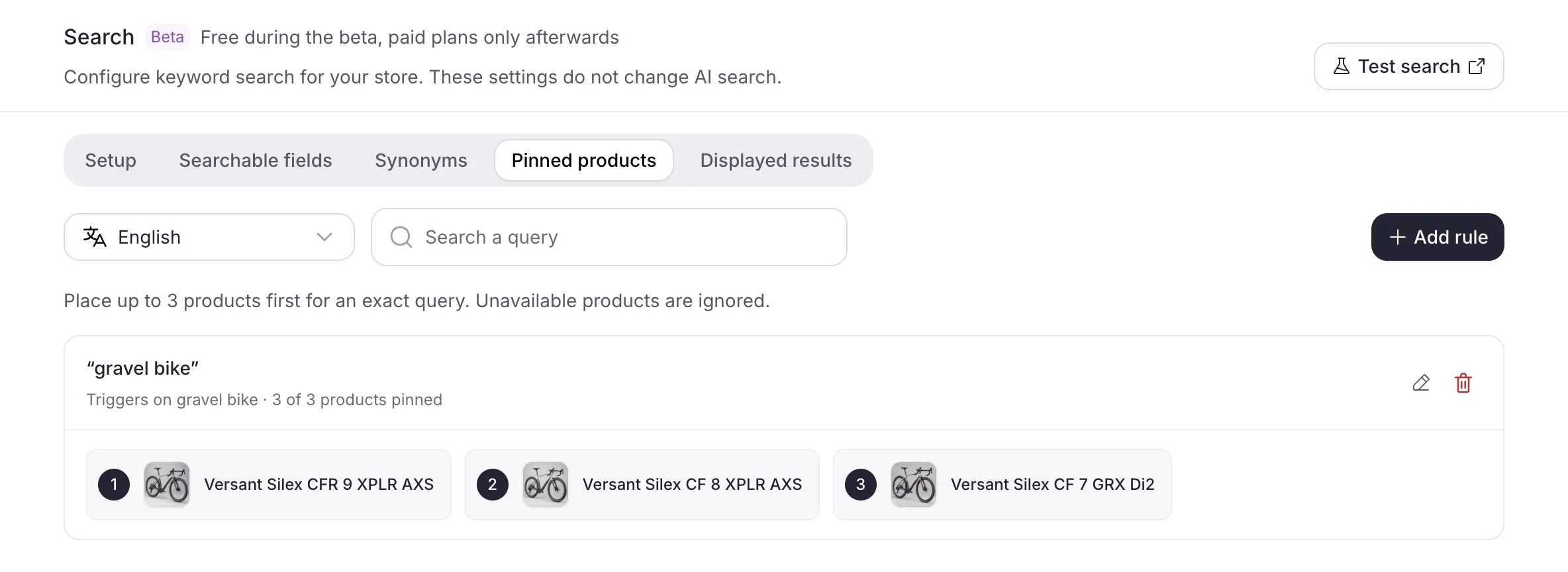
Like synonyms, pin rules apply to one language: pick it with the selector at the top of the tab. To add a rule:
- Pick the language, then click Add rule.
- Type the Exact query. Case, accents and extra spaces are ignored.
- Find products with Search your catalog and click Add on 1 to 3 of them. Reorder them with the up and down arrows: they show in this order at the top of the results.
- Save.
There is one rule per query in each language. A store holds up to 100 rules, all languages together.
Include synonyms also triggers the rule when the query is a synonym of the whole rule query (from the Synonyms tab). A rule whose exact query matches always takes priority. When several rules reach the same query only through synonyms, none of them pins anything, and the tab warns you: “Conflicting synonym triggers (no pins applied)”.
A pinned product that is unavailable or unpublished is skipped in the results: its rule shows “Pin ignored: product unavailable or unpublished.” Remove it or replace it with another product.
Collections in results
Section titled “Collections in results”Products always appear in search results. The Displayed results tab lets you show collections too, in their own section.
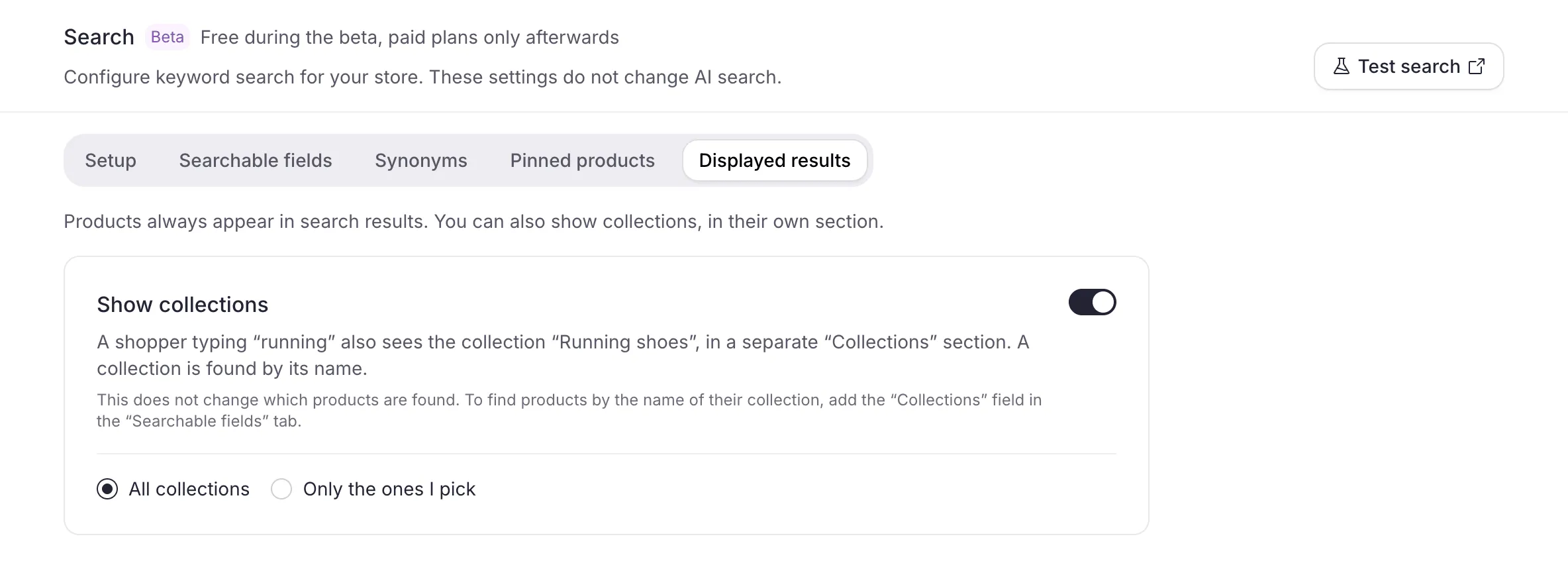
Turn on Show collections: a shopper typing “gravel” also sees your collection “Gravel bikes”, in a separate Collections section next to the products. A collection is found by its name. Then choose which collections can show: All collections, or Only the ones I pick and then Choose collections.
This setting does not change which products are found. To find products by the name of their collection, add the Collections field in the Searchable fields tab.
Related
Section titled “Related”- Search overview: what Search does and the beta terms.
- Install Search on Shopify: the theme install the Setup tab walks you through.