Personal Shopper
Personal Shopper is a guided product discovery flow embedded on your storefront. A visitor opens it, answers a short series of AI-generated questions (with an optional photo), and gets a personalized shortlist of products with a short explanation of why each was picked.
It’s the in-store advisor experience, online — and a much sharper conversion driver than static quizzes or search bars.
This page is for merchants: everything below is configured self-serve from your dashboard, no developer and no support ticket needed. The only part that may involve your developer is the trigger (a CSS selector or a custom event) on custom installs.
How activation works
Section titled “How activation works”A Personal Shopper opens when the visitor clicks an element you’ve designated as its trigger — either a CSS selector or a custom event you dispatch yourself. You can run multiple Personal Shoppers in parallel on the same store, each with its own trigger, persona, prompts, and collections — for example one for skincare routine recommendations on the homepage, another for gift discovery in the navigation.
A Personal Shopper without a trigger is never launched.
Where you configure it
Section titled “Where you configure it”Everything is self-serve from the Dialog dashboard, at:
https://app.askdialog.com/organization/{your-org-slug}/personal-shoppersFrom there you create Personal Shoppers, edit their content, configure CRM integration, and publish them. There’s nothing to email support about for setup.
Status workflow
Section titled “Status workflow”A Personal Shopper moves through three states:
- Draft — visible only in your dashboard, not exposed to visitors.
- Published — live on the storefront and triggerable.
- Archived — taken offline, kept for reference.
Only published Personal Shoppers are fetched by the widget.
Cross-cutting features
Section titled “Cross-cutting features”These behaviors apply across every step of the configuration:
- Language selector (top-right of General settings) — switches translatable fields to the selected locale.
- Translate to all languages — AI-translates the current field into every enabled locale in one click.
- AI pre-fill — on creation, prompts and translatable texts are auto-generated in the background so you start from a usable draft, not a blank slate.
- Save as draft / Publish — draft means not live; publish means live for the configured trigger.
The configuration is split in two steps: Set up (what the Personal Shopper does) and Configuration (how it’s triggered + how it tags contacts in your CRM).
Step 1 — Set up
Section titled “Step 1 — Set up”1. General settings
Section titled “1. General settings”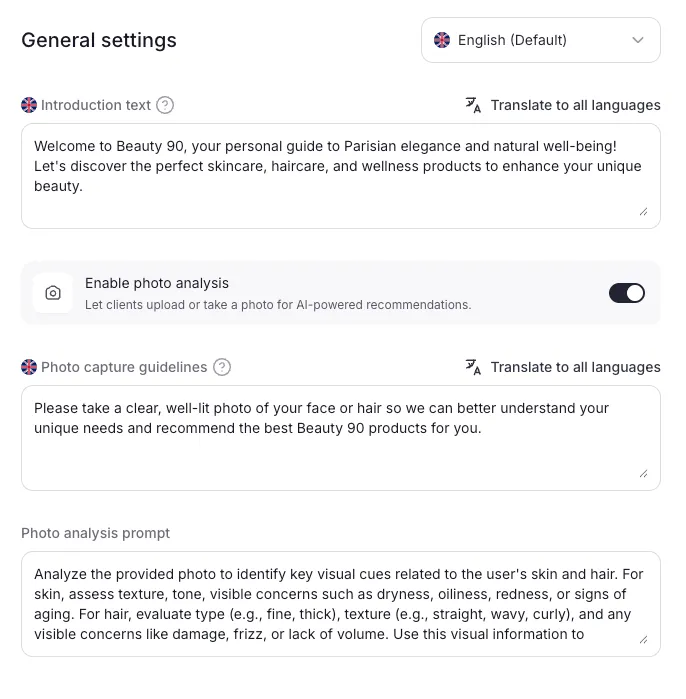
| Field | What it does |
|---|---|
| Introduction text (translatable) | First message shown when the Personal Shopper opens. |
| Enable photo analysis (toggle) | Lets the visitor upload or take a photo the AI can use to refine recommendations. Opens the photo capture settings. |
| Default camera direction (photo only) | Front or Back — which camera opens by default on mobile. |
| Photo capture guidelines (translatable, photo only) | Instructions shown to the visitor before they take the photo (lighting, framing, distance…). |
| Photo analysis prompt (photo only) | Internal AI prompt that tells the model what to detect in the photo. Not shown to end users. |
Photo capture is a powerful signal for verticals where what the customer looks like, owns, or wants to match matters — skincare, hair, fit, decor.
2. Information collection
Section titled “2. Information collection”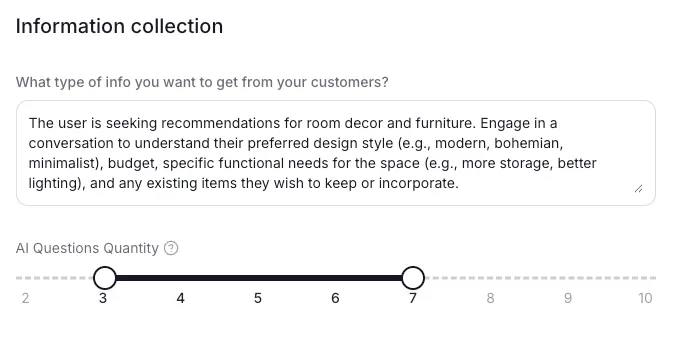
| Field | What it does |
|---|---|
| What type of info you want to get from your customers? | AI prompt steering which info the qualification questions should collect (budget, use case, preferences, constraints…). |
| AI Questions Quantity (slider 2–10) | Minimum and maximum number of questions the AI may ask before moving to recommendations. |
Keep the question count tight — 3 to 6 is usually the sweet spot. Past that, completion rate drops.
3. Results & recommendations
Section titled “3. Results & recommendations”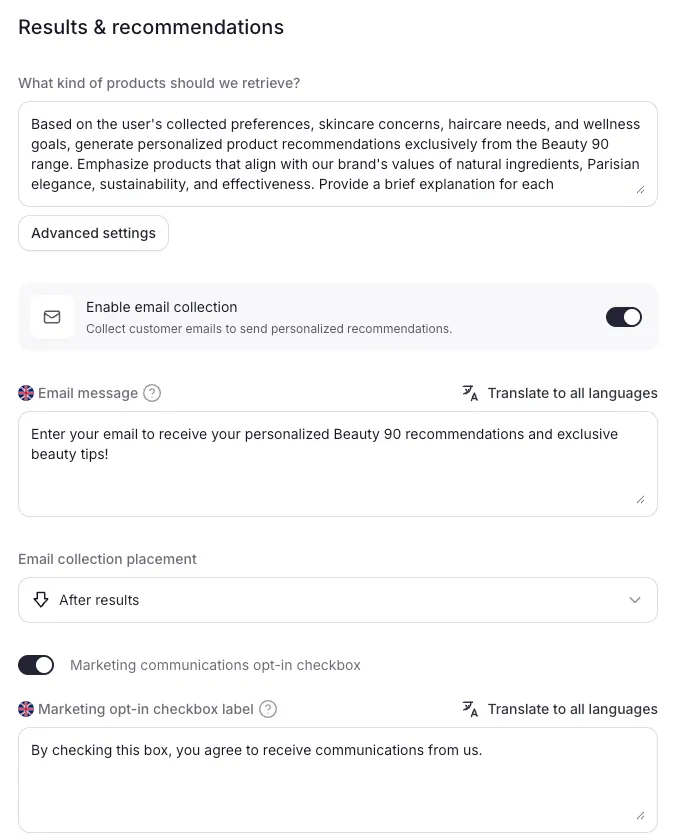
| Field | What it does |
|---|---|
| What kind of products should we retrieve? | AI prompt steering which products to surface in the shortlist. |
| Advanced settings → Include collections | Whitelist. The AI may only recommend from these collections. Leave empty to keep the whole catalog eligible. |
| Advanced settings → Exclude collections | Blacklist. Products in these collections are never recommended. |
| Advanced settings → Boost collections | Pushed up in ranking when relevant. |
| Enable email collection (toggle) | Asks the visitor for their email during the flow. Opens the CRM settings. |
| CRM settings → Platform | Klaviyo, Yotpo, or Request a new platform. |
| Email message (translatable, email only) | Message shown when the visitor is asked for their email. |
| Email collection placement (email only) | On start — at the very beginning of the flow. Before results — just before recommendations. After results — after recommendations. |
| Marketing opt-in checkbox (toggle, email only) | Adds a consent checkbox alongside the email field. |
| Marketing opt-in checkbox label (translatable, opt-in only) | Text displayed next to the checkbox. Keep it compliant with your local regulations. |
Step 2 — Configuration
Section titled “Step 2 — Configuration”4. Trigger configuration
Section titled “4. Trigger configuration”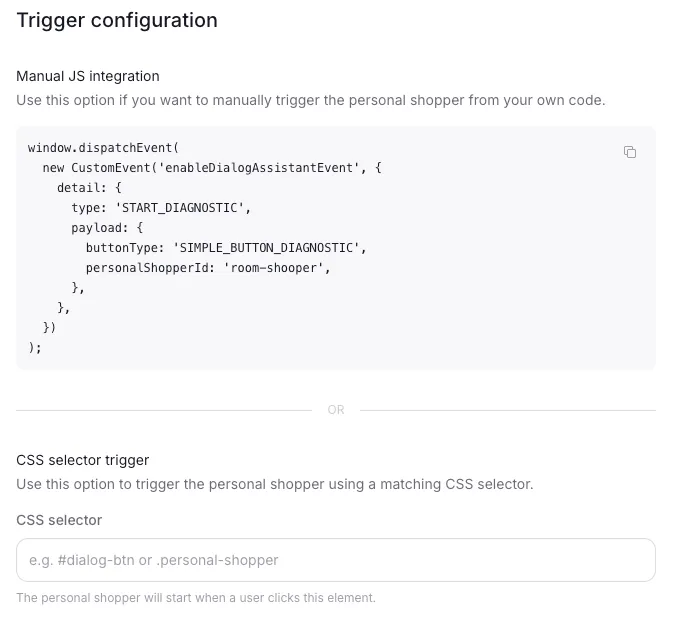
Either or both methods can be used.
| Field | What it does |
|---|---|
| Manual JS integration | Copy-paste snippet that dispatches enableDialogAssistantEvent with the Personal Shopper slug. Wire it to any custom button, link, or event in your storefront. |
| CSS selector trigger | The Personal Shopper opens when a visitor clicks any element matching this selector. Inspect your storefront to find the right class or id. |
Use the CSS selector for plug-and-play installs (existing buttons, theme links). Use the JS integration when you need precise control — e.g. opening it from a custom React component, after a modal closes, or on a specific page state.
5. CRM tagging
Section titled “5. CRM tagging”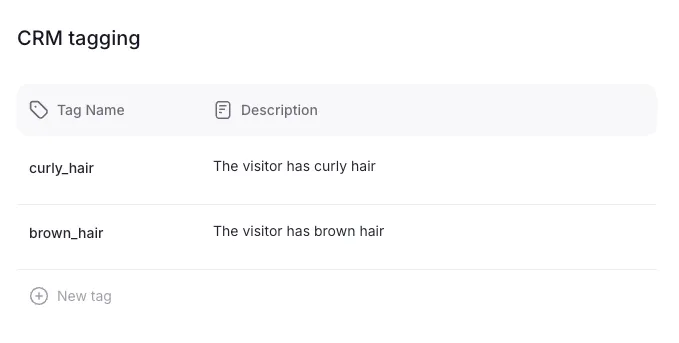
CRM tagging lets the AI attach tags to the contact pushed to your CRM, based on what the visitor said during the flow.
| Field | What it does |
|---|---|
| Tag name | Literal tag value sent to the CRM. snake_case recommended. |
| Description | Natural-language rule telling the AI when to apply the tag (e.g. “The visitor has curly hair”). |
Tags drive downstream marketing flows: anyone tagged skincare_dry_skin gets the dry-skin nurture sequence, anyone tagged gift_under_50 lands in a gifting campaign, and so on.
Requires email collection enabled and a CRM platform configured. Without an email there’s no contact to tag.
Writing effective prompts
Section titled “Writing effective prompts”Several fields in the Personal Shopper are AI prompts: Photo analysis prompt, What type of info you want to get from your customers?, What kind of products should we retrieve?, and CRM tag Descriptions.
These prompts steer the AI’s behavior but don’t program it deterministically — follow the guidelines below to get consistent results.
Keep prompts short and focused
Section titled “Keep prompts short and focused”- Aim for 2–5 sentences per prompt. Long prompts dilute the signal and the AI is more likely to drop or reweight parts of it.
- One prompt = one job. If you’re mixing “find products in category X” and “always upsell accessories” and “avoid out-of-stock items”, split the intent across the right fields (e.g. use Exclude collections for hard constraints instead of stuffing them into the product prompt).
- Prefer plain, direct language over marketing copy. The AI doesn’t need to be “sold” on the brief.
Be specific, not generic
Section titled “Be specific, not generic”- ❌ “Recommend nice products that fit the customer.”
- ✅ “Recommend running shoes suited to the user’s pace, weekly mileage, and terrain. Prioritize neutral models unless the user mentions overpronation.”
Concrete attributes (pace, terrain, skin type, room size…) give the AI something to anchor on. Vague adjectives (“nice”, “premium”, “trendy”) do almost nothing.
Treat prompts as guidance, not guarantees
Section titled “Treat prompts as guidance, not guarantees”Prompts shape the AI’s behavior probabilistically. Even a well-written prompt will not be followed 100% of the time:
- The AI may occasionally ignore an instruction, especially if it conflicts with the user’s answers or the product catalog.
- Edge cases (unusual photos, off-topic questions, sparse catalogs) can push the model outside the brief.
- The same prompt can produce slightly different outputs across sessions — that’s expected.
When something feels off, tighten the prompt, move hard constraints out of the prompt into structured fields (collections, toggles), and re-test on a few real visitor flows.
Klaviyo integration
Section titled “Klaviyo integration”Klaviyo is the supported CRM platform out of the box (Yotpo is also wired in but with less day-one polish).
What Dialog sends to Klaviyo for Personal Shopper:
- A profile event when the visitor submits their email during the flow — so Klaviyo knows they engaged and has their address.
- A profile event when the visitor completes the Personal Shopper — so you can branch a flow on it.
- The CRM tags configured on the Personal Shopper get attached to the profile.
That’s the entire Klaviyo wiring — there’s no need for a separate metric setup, custom JSON, or webhook.
How to configure Klaviyo on your org:
- Go to
https://app.askdialog.com/organization/{your-org-slug}/personal-shoppers. - Open the CRM configuration.
- Pick
Klaviyoas the platform. - Paste your Klaviyo private API key.
- Save. From the next published Personal Shopper completion, events flow to Klaviyo.
For the legacy diagnostic email template (separate from Personal Shopper), see Klaviyo integration.
Dashboard insights
Section titled “Dashboard insights”Personal Shopper performance shows up in your Dialog dashboard alongside the rest of your assistant metrics. Track:
- Completion rate — how many visitors who start the flow reach the recommendations.
- Email capture rate — how many submit their email.
- Click-through to product — how many click a recommendation.
- Add-to-cart from Personal Shopper — direct conversion from the flow.
If you run multiple Personal Shoppers, you can compare these numbers across them in the dashboard to see which entry point converts best.
Quick checks (debug)
Section titled “Quick checks (debug)”If you’ve configured a Personal Shopper and clicking the trigger does nothing:
- Widget loaded on the page? The assistant widget must be present on the page where the trigger sits. On Shopify and Prestashop this is automatic on pages with the widget. On custom installs, make sure your storefront code loads the SDK on those pages.
- Selector actually matches? Open devtools and run
document.querySelectorAll('YOUR_SELECTOR')— if it returns nothing, the selector is wrong. - JS event dispatched correctly? If you’re using the manual integration, check the slug in the event payload matches the Personal Shopper slug exactly.
- Personal Shopper status is
published? Drafts are not fetched by the widget.